
A template is used to accelerate the creation of a message. If a template has been created only the start time is needed to generate a fully operative message from the template.
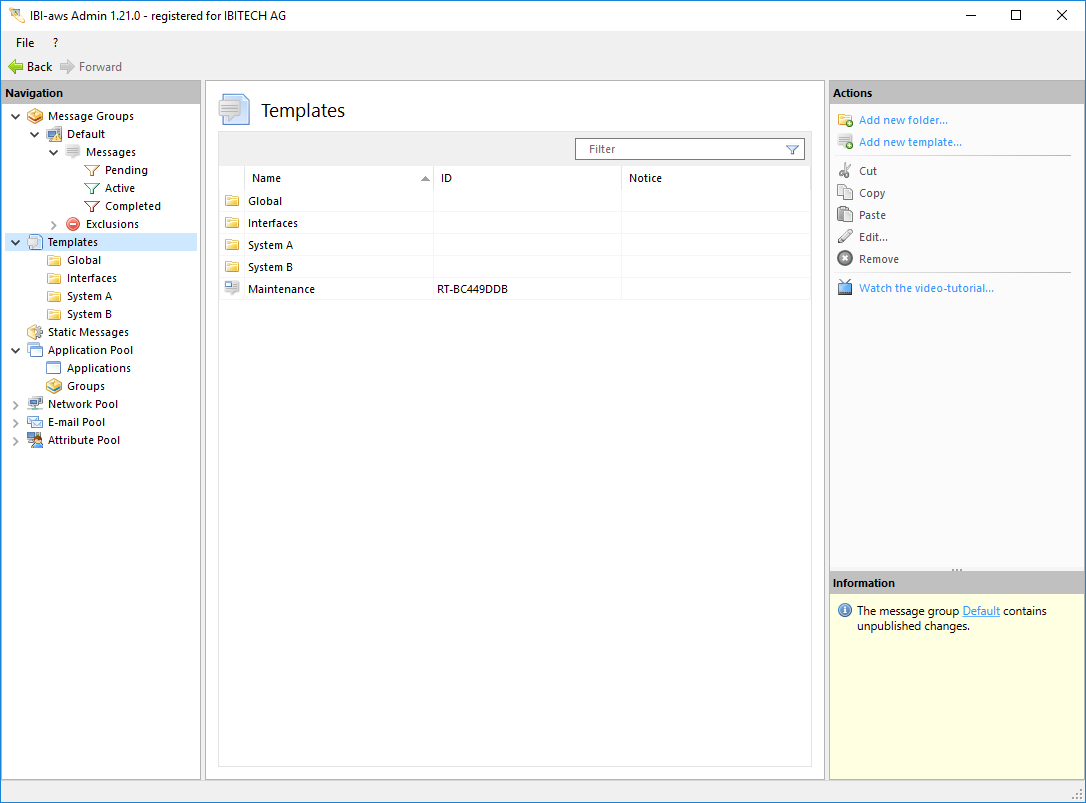
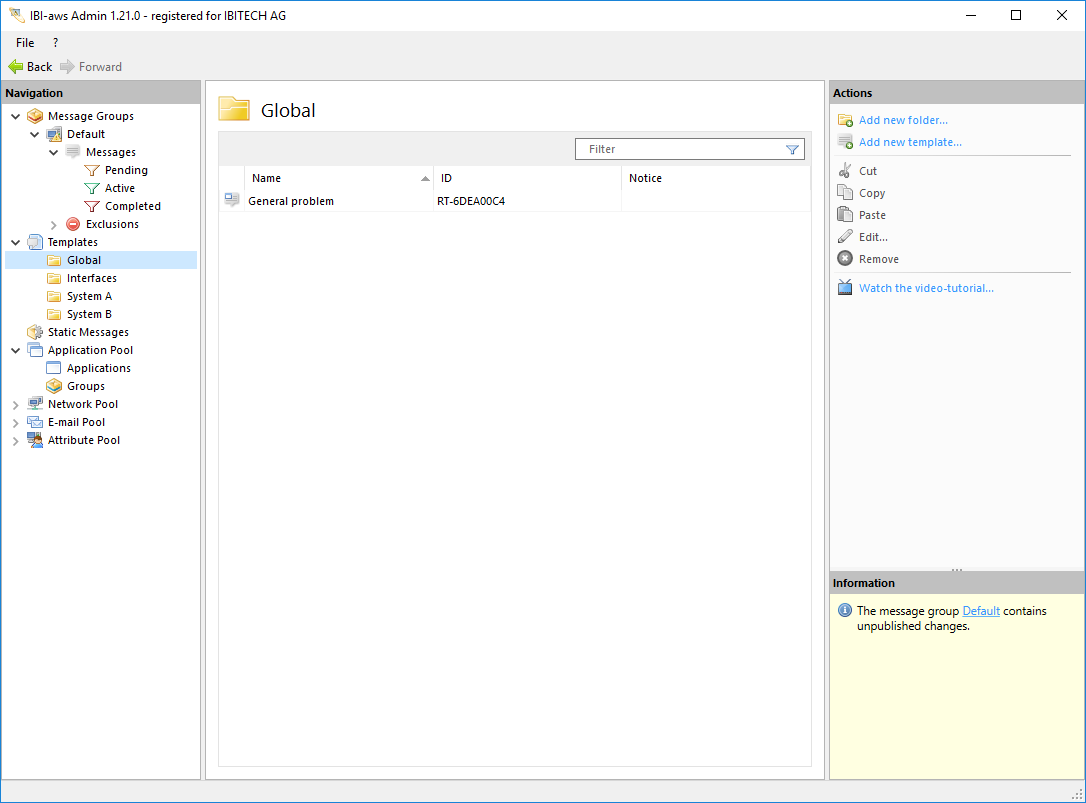
The templates are stored in the section Templates and are available for all message groups. To improve the management of the templates it is possible to store them in subfolders.
Create a template from a message
Classic method
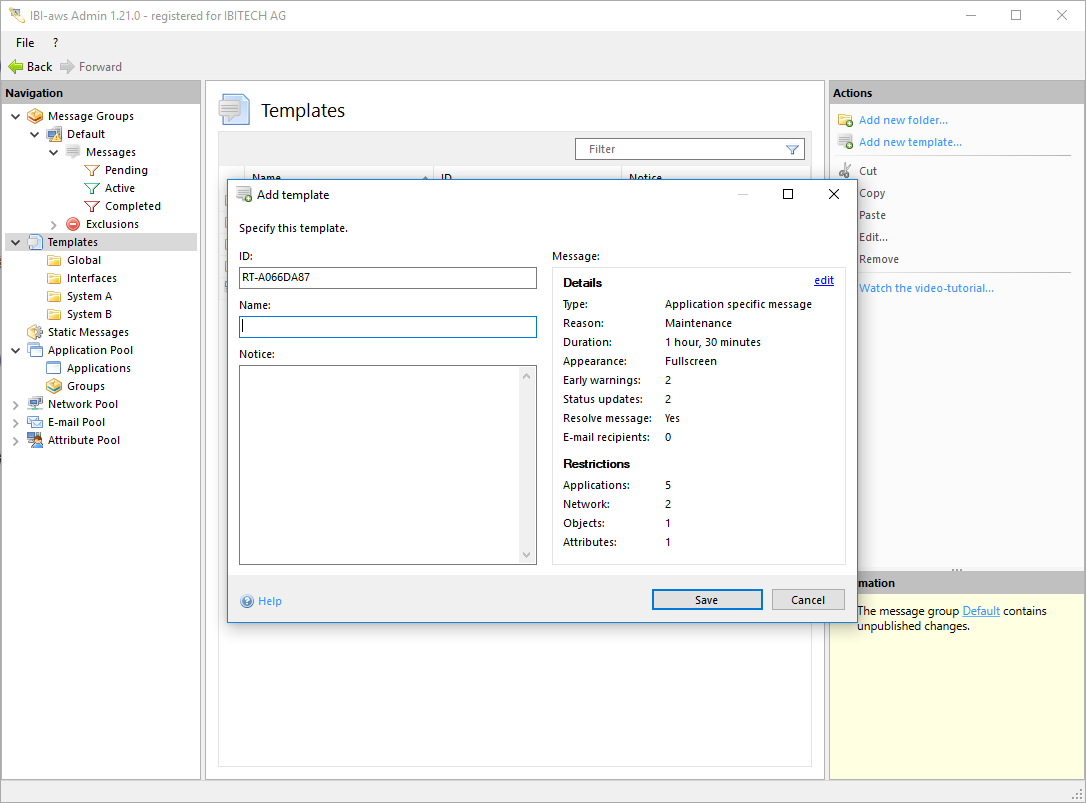
The Create Template action can be accessed in the Templates area. Clicking on this action opens the dialog box shown below.
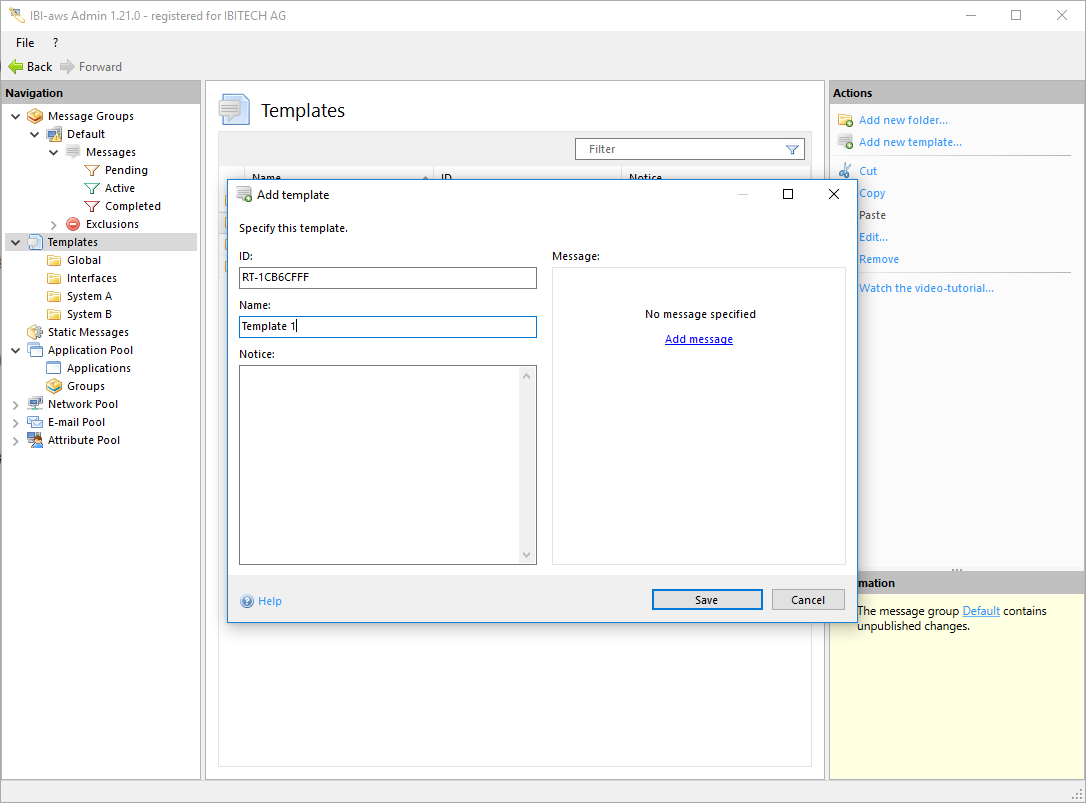
To create a template, in addition to a message—which can be added with the link Add Message—you will need a unique ID (to simplify locating the template later) and a name. A comment can also be included.
To add a message to a template, follow exactly the same steps that were used to create a message.
Creating a template from an existing message
Selecting a message in the Messages area makes the action Create Template available.
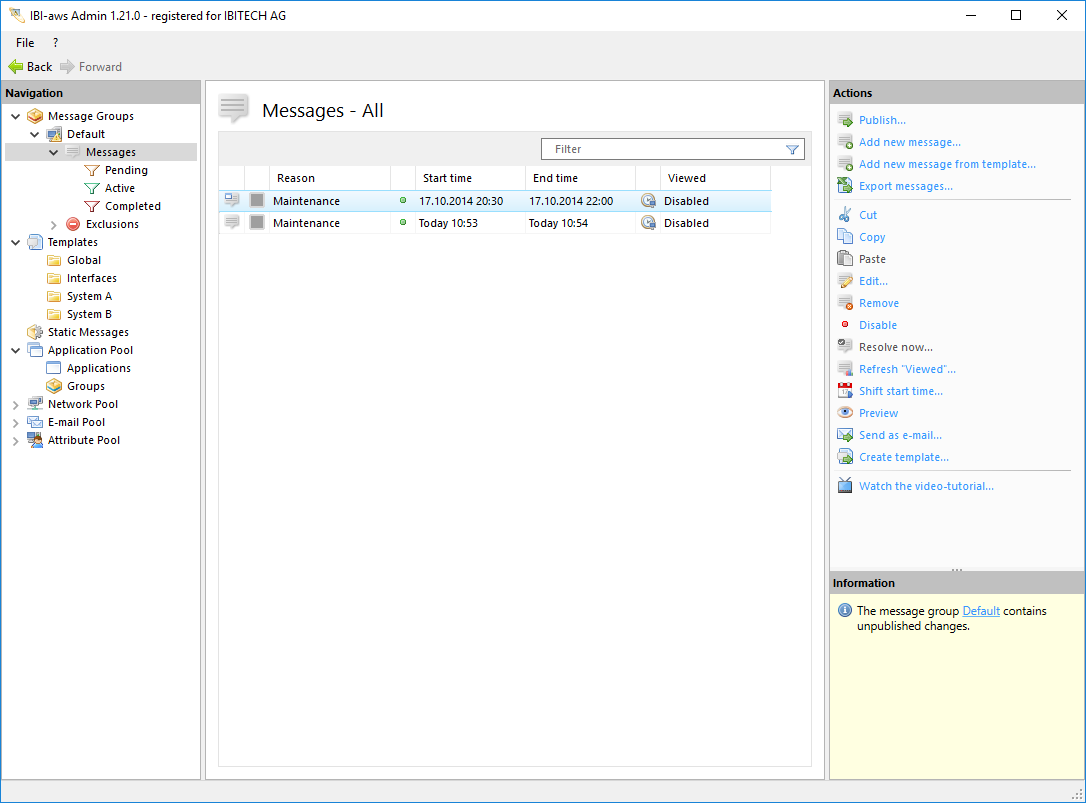
Clicking on this action opens a dialog box for creating a template. With this method, the Message field is filled in with data from the selected message.
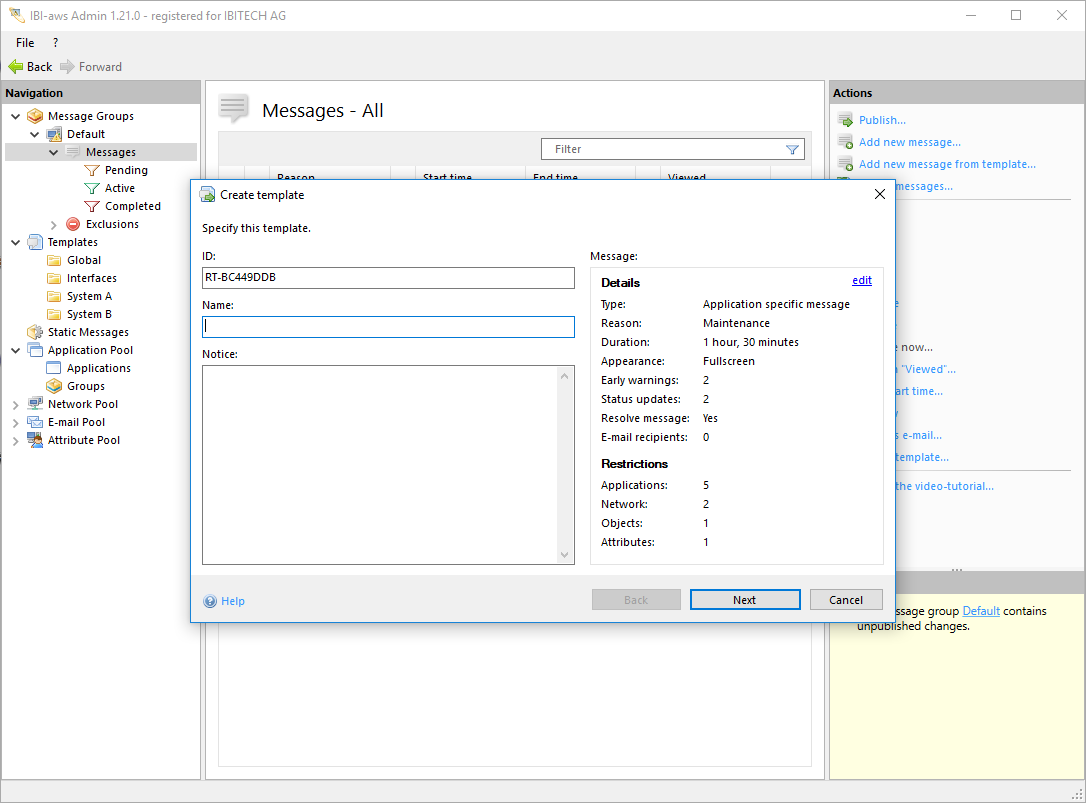
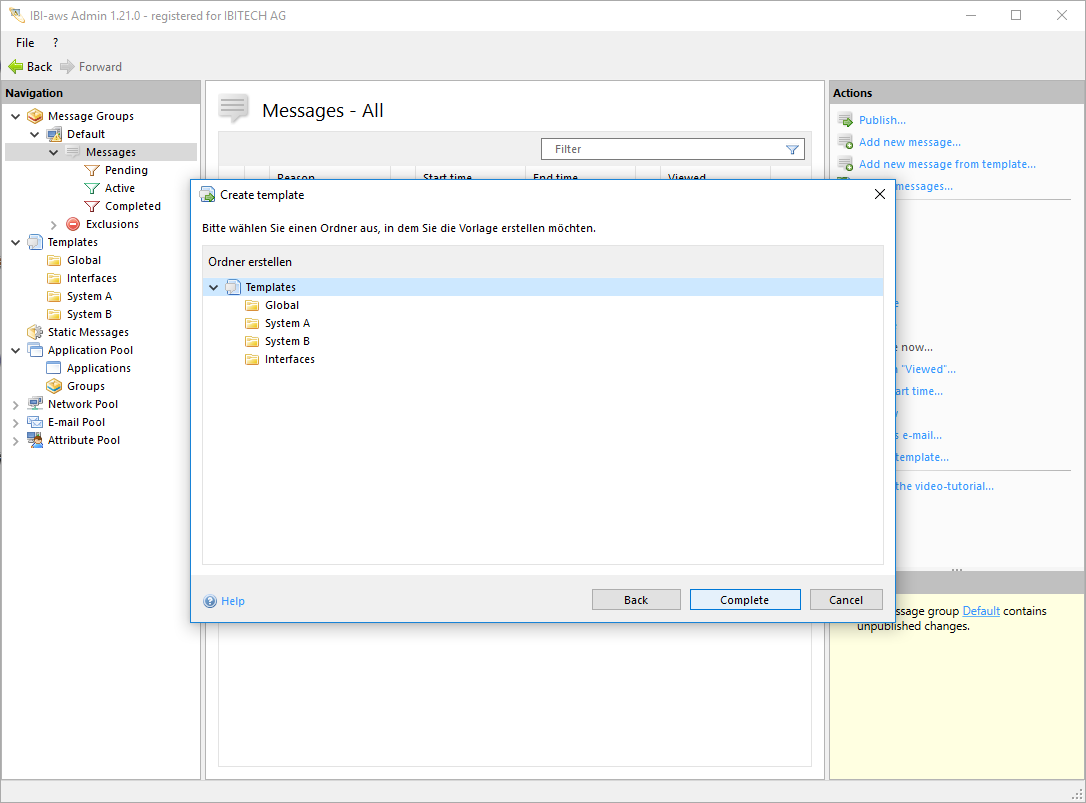
Next, select a template folder where the template will be stored.
Drag and drop to create a template from an existing message
An existing message from the message list of a message group can be moved to a template folder in the Navigation pane by dragging and dropping.
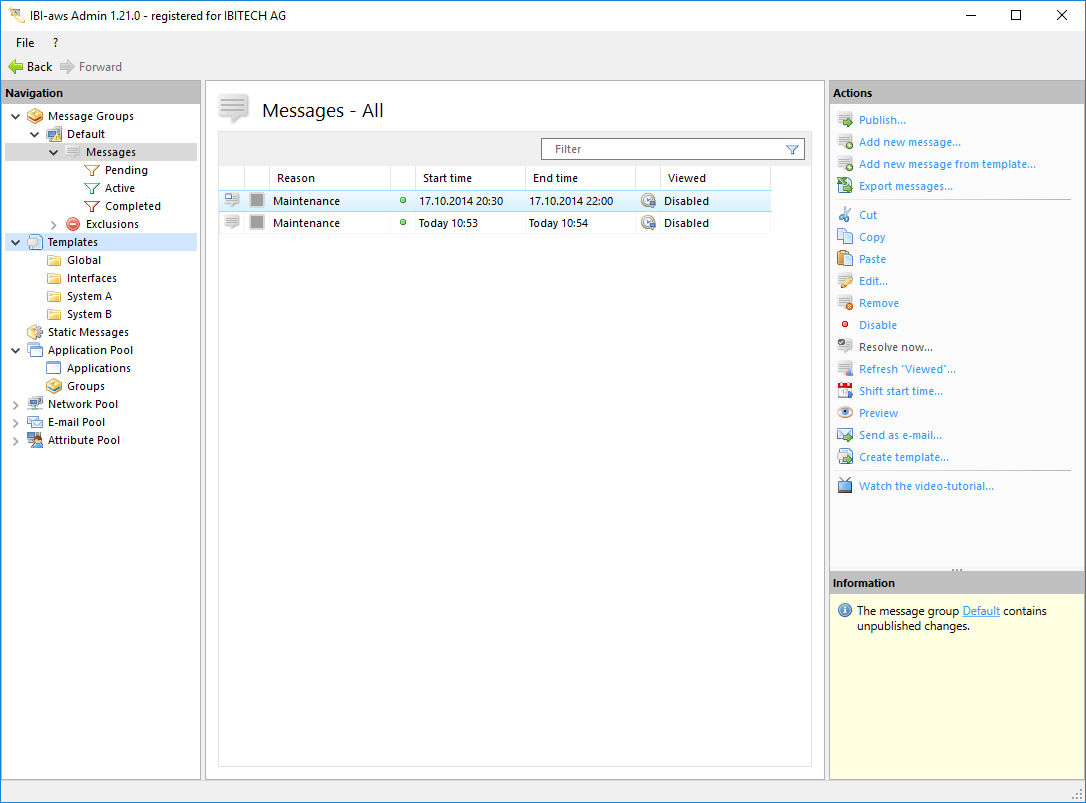
This action opens the Create Template dialog box with the message already filled in. To generate the template, all you have to do is give it a name.
Create message from template
From a message list
The action Add New Message from template is available in the message list of a message group.
Clicking on this action opens a dialog box that lets you search all templates.
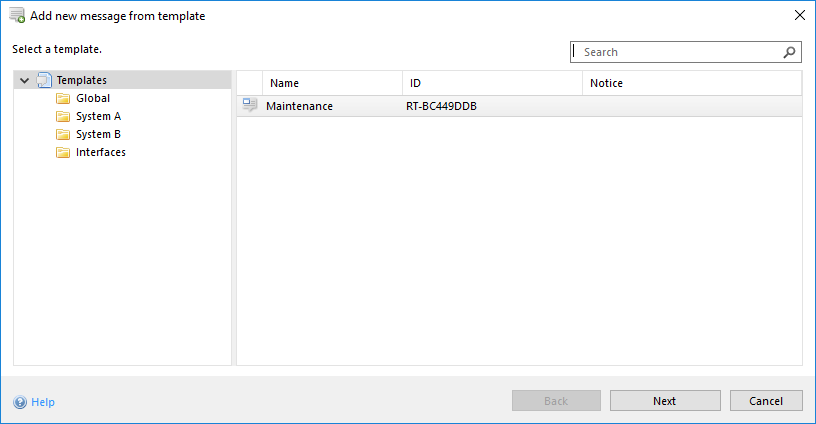
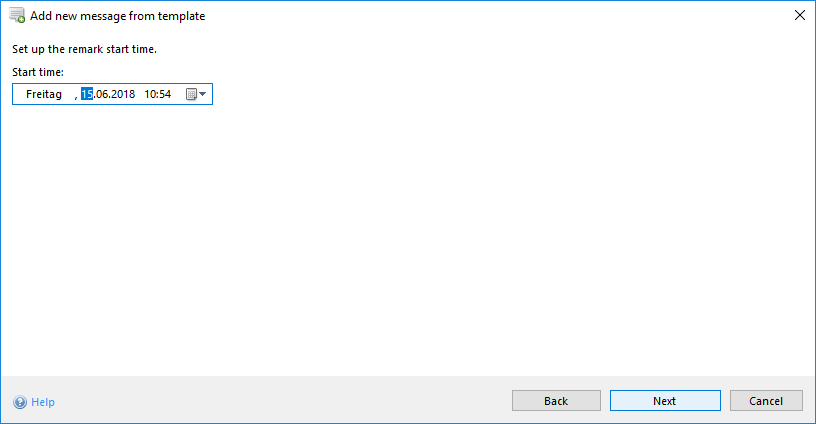
After selecting the right template, the start time must be specified. The starting time specified is used to preserve the duration that was set originally. The starting times of any stored early warnings are also updated.
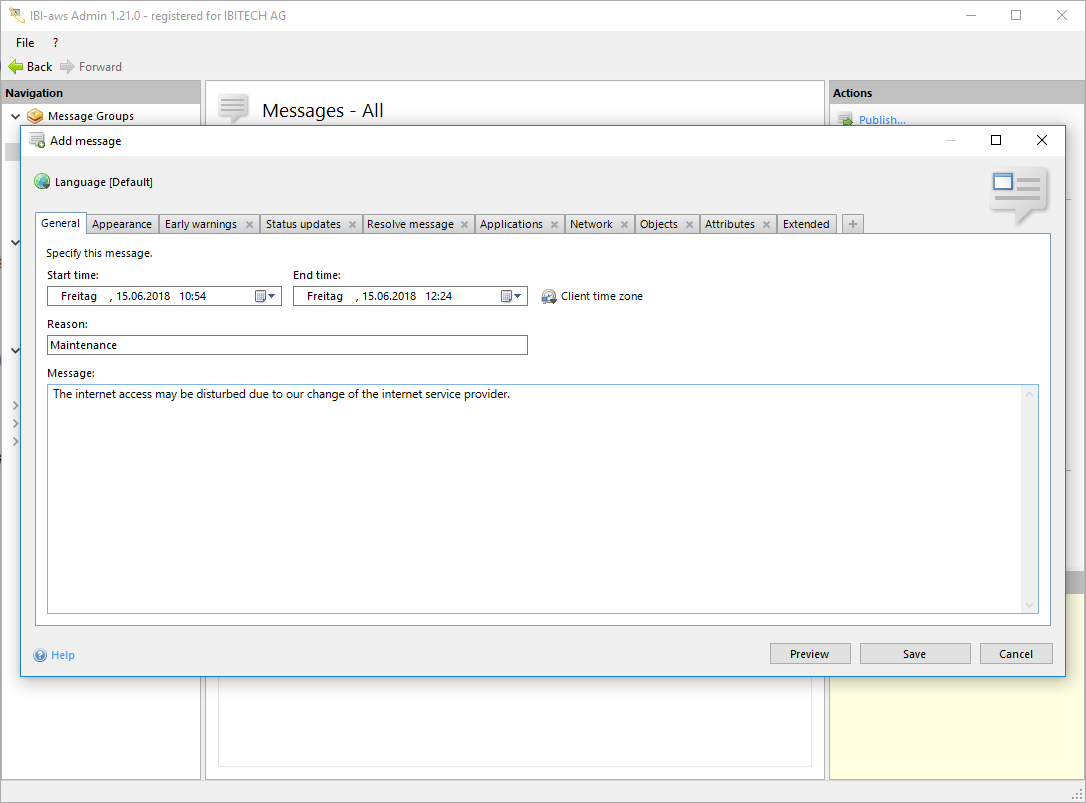
The message can be modified before it is added to the message list. Clicking on Save generates the message.
From a template folder by dragging and dropping
A message can be generated from a template by dragging the desired template from a template folder and dropping it into the message list of a message group.
The steps outlined below are similar to the procedure just described (From a message list). The starting time of the message must be entered first.
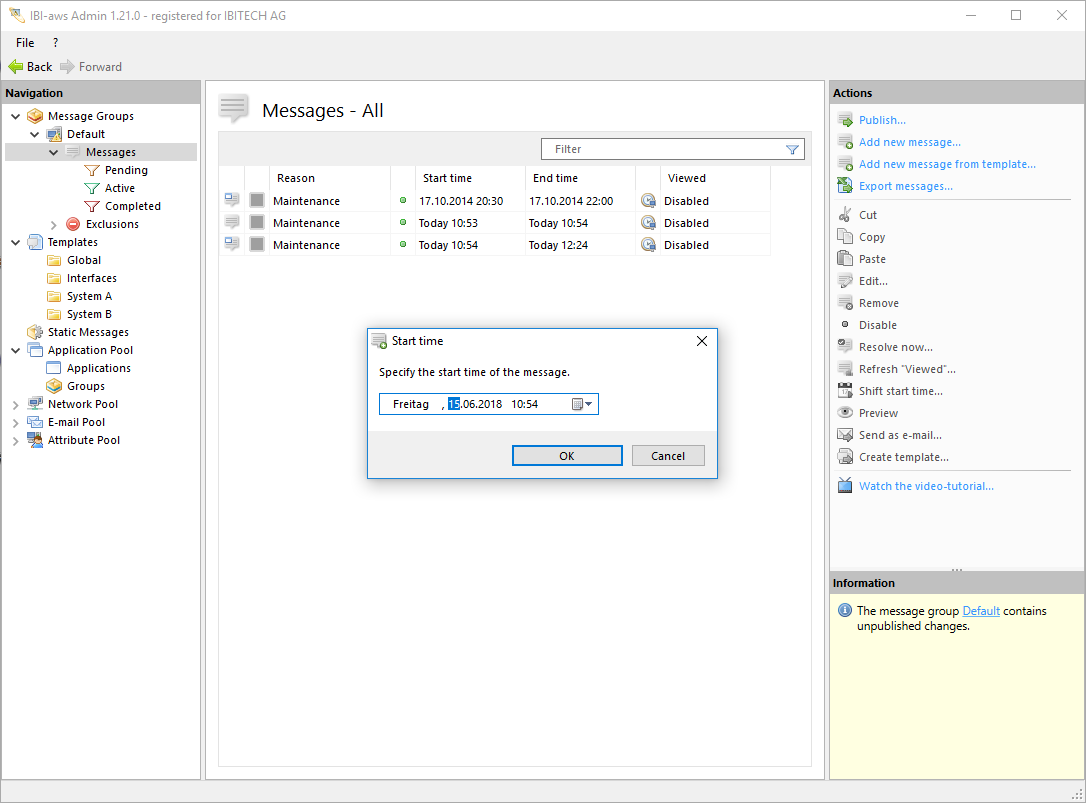
Then the message can be modified before it is added.