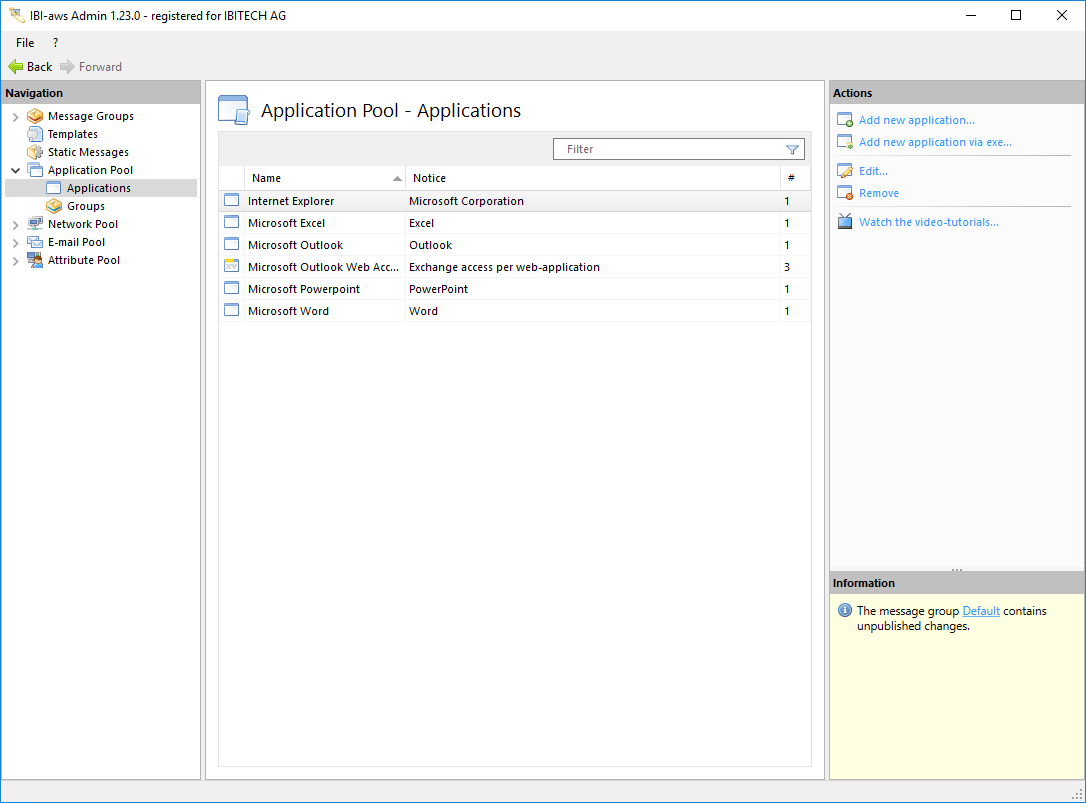
An application can be added to the Application Pool in several ways. These are explained below.
Adding an application manually
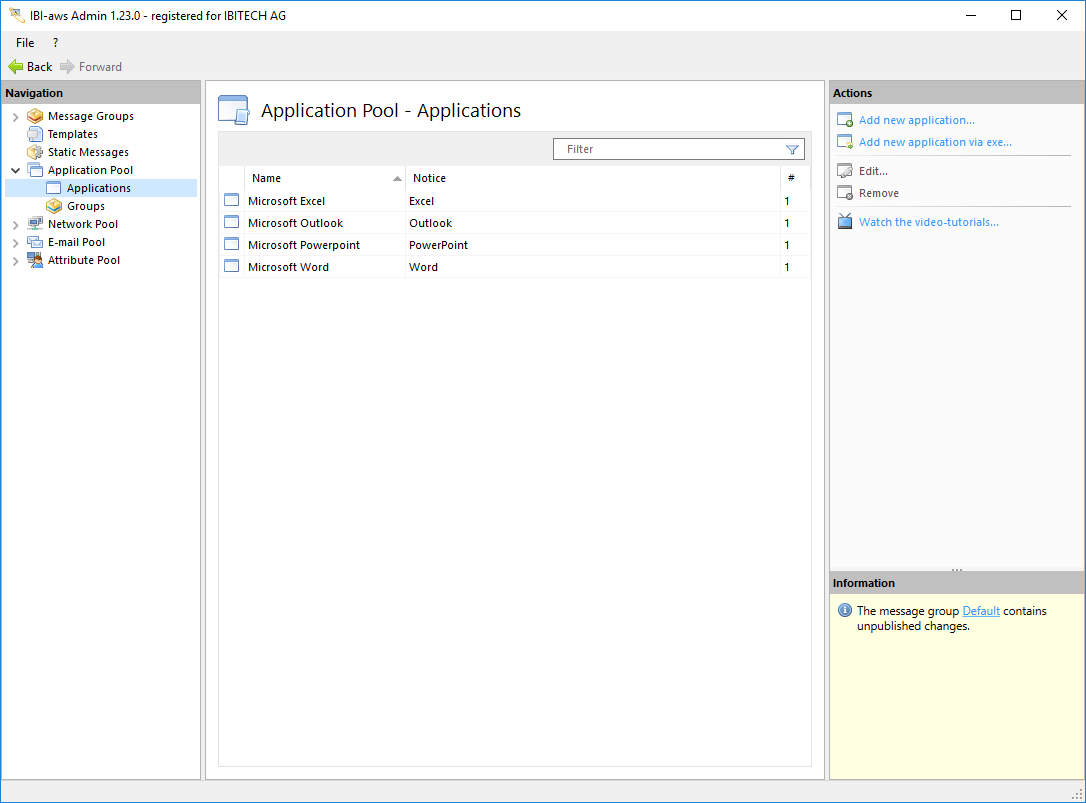
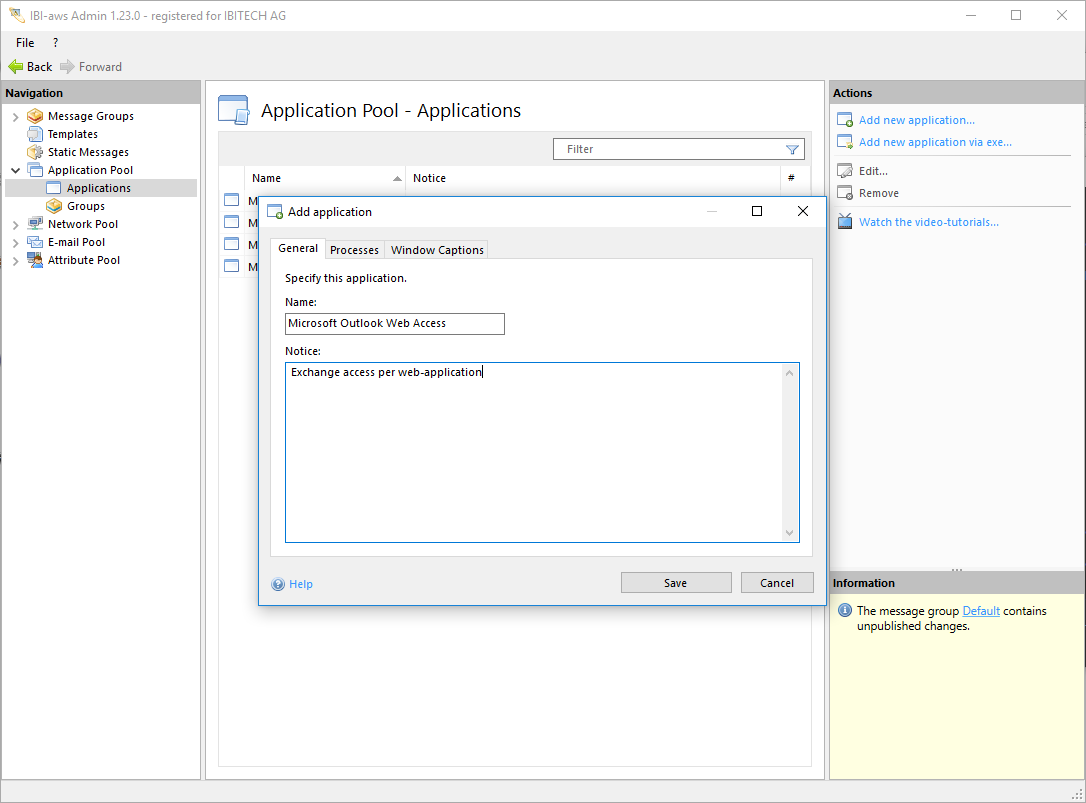
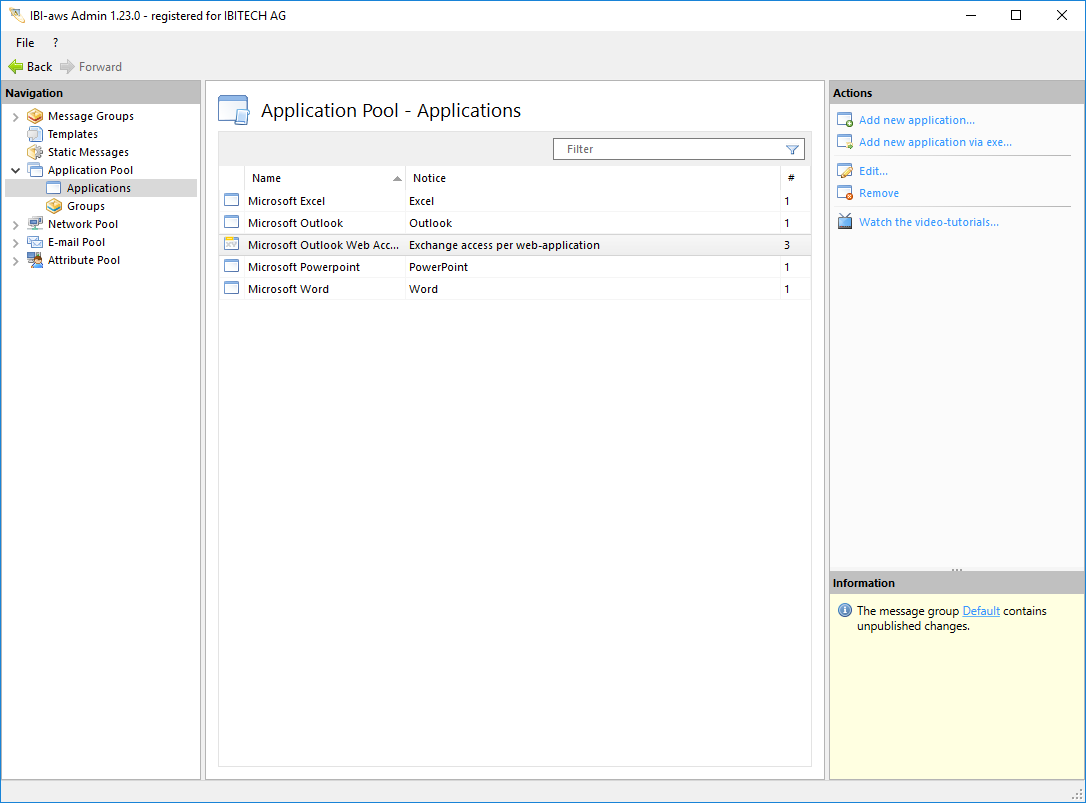
The action Add new application is available in the Application Pool. Clicking on this action opens a dialog box in which the properties of the application can be set.
Every application must have a name. In selecting a name, keep in mind that it will be displayed to the user.
A note can be added (optional).
Processes
To identify an application correctly, at least one process definition is required.
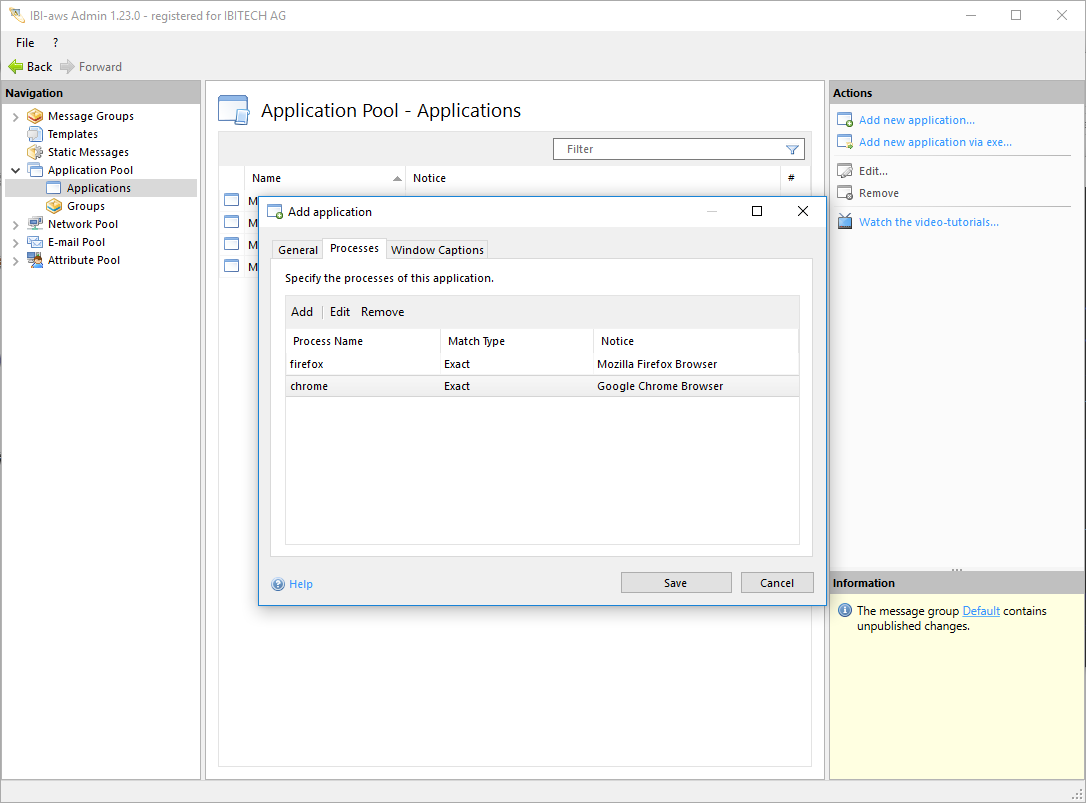
A process is identified by its name. The process name can be exact or it can be identified by wildcards (Begins with, Contains, Ends with).
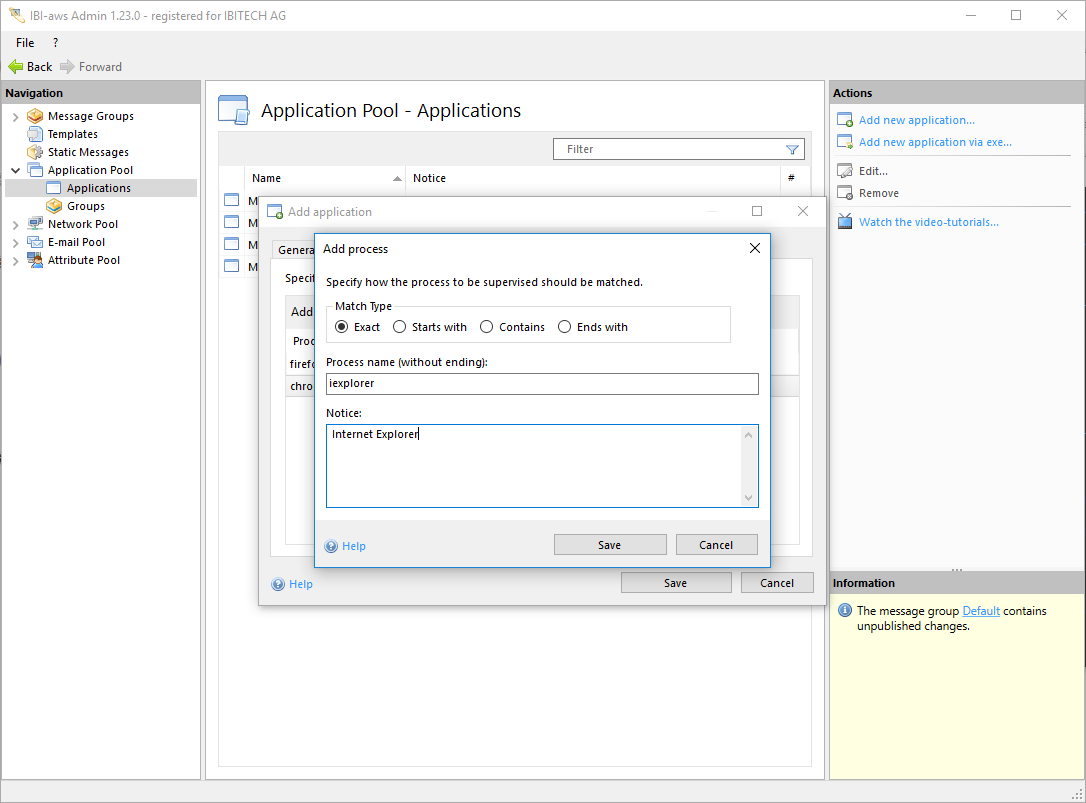
Examples
Identify Calculator (calc.exe) application
|
Process name |
Match Type |
Identified? |
Note |
|---|---|---|---|
|
|
|

|
Recommended |
|
|
|
|
Unwanted applications could be identified |
|
|
|

|
Process name does not match |
Identify Notepad (notepad.exe) application
|
Process name |
Match Type |
Identified? |
Note |
|---|---|---|---|
|
|
|
|
Recommended |
|
|
|
|
Unwanted applications (e.g. wordpad.exe) could be identified |
Window captions
If an application cannot be uniquely identified by it's process name, for example because only certain instances are affected by a problem, window captions can be used for more precise identification.
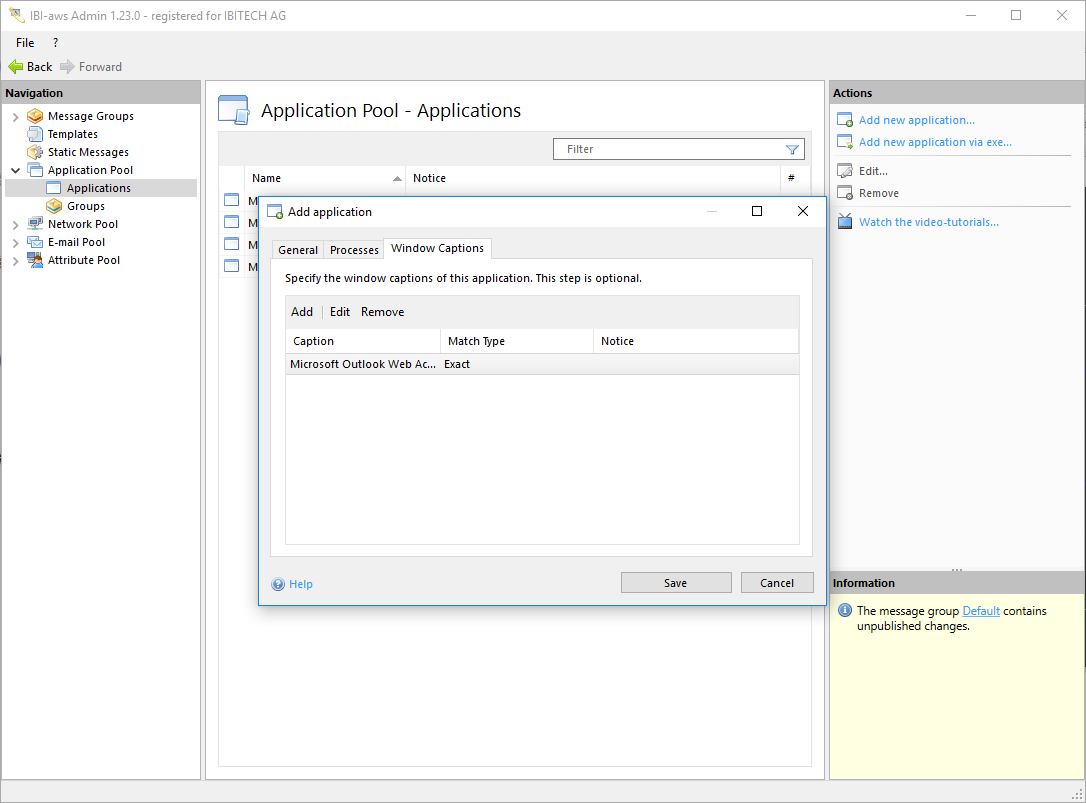
Example
Database DB-2 has failed and all instances of the application that access this database should be notified.
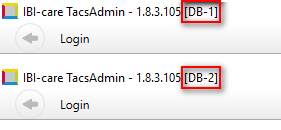
|
Application window caption |
Keyword |
Match type |
Identified? |
|---|---|---|---|
|
IBI-care TacsAdmin - 1.8.3.105 [DB-1] |
|
|
|
|
IBI-care TacsAdmin - 1.8.3.105 [DB-2] |
|
|
|
Identify specific applications
The following articles describe how to add a specific application:
Using drag and drop
If an available exe file is moved to the Application Pool by dragging and dropping, an application entry is generated automatically.
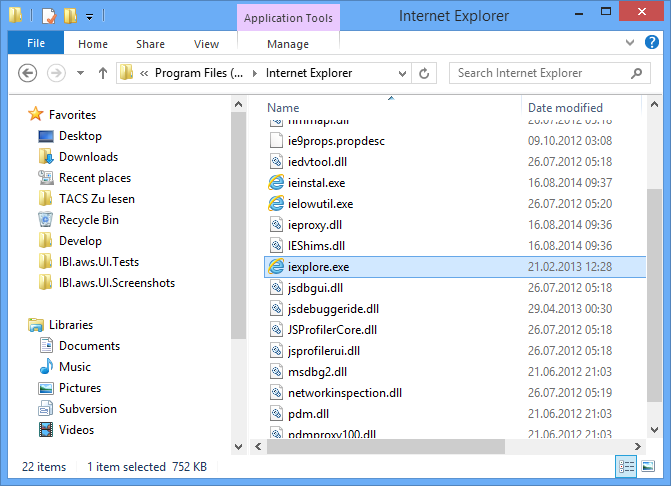
In this operation, exe file properties (application name, description, process name) will be extracted automatically.